How I Set Up OpenClaw on an Old Laptop
Notes on turning an old laptop into my always-on OpenClaw assistant, and even drafting this post together over Telegram.
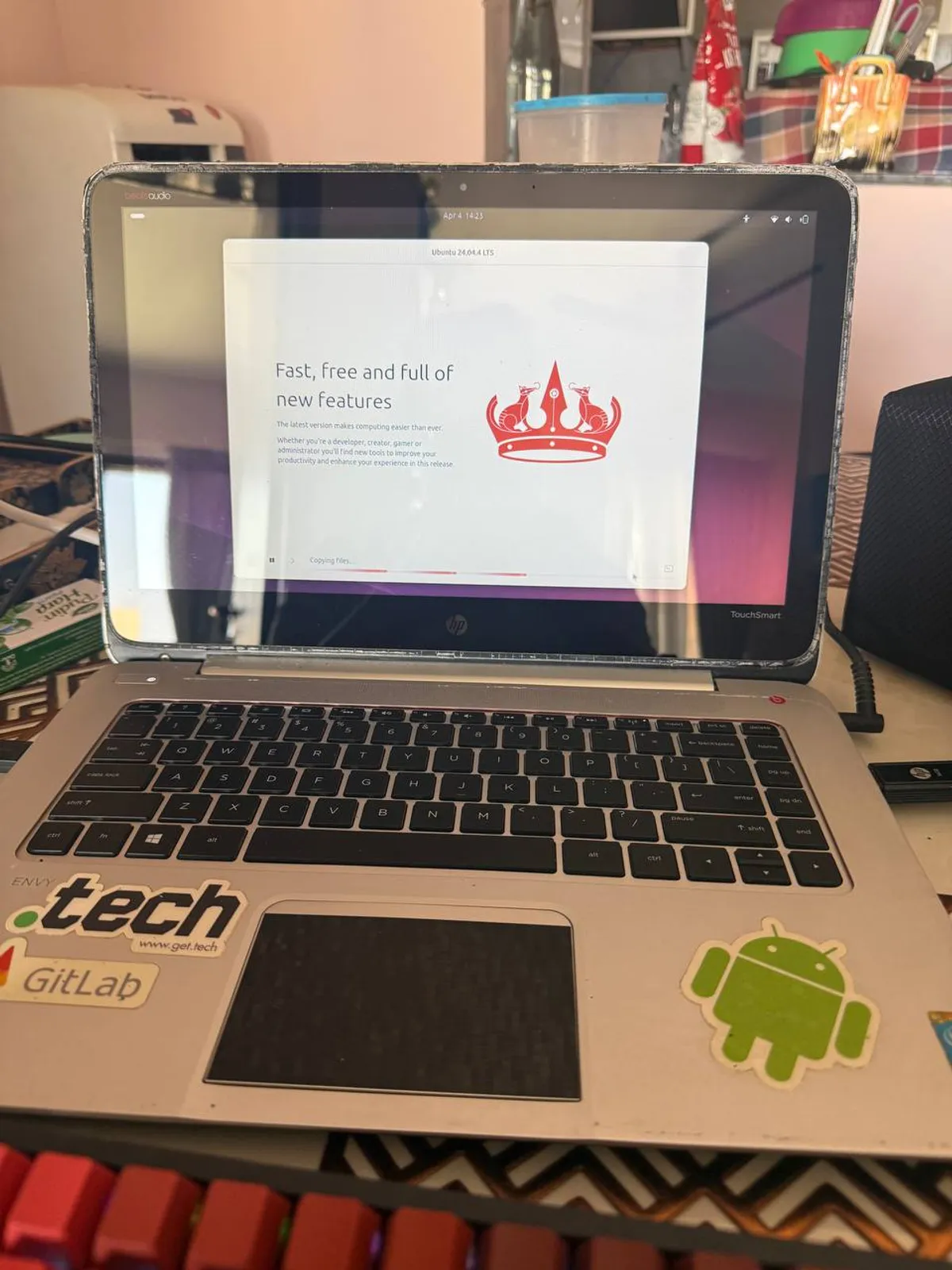
There’s something deeply satisfying about giving old hardware a second life.
Instead of letting an aging laptop slowly retire into a drawer full of cables, forgotten chargers, and vague guilt, I decided to turn mine into something useful: a dedicated machine for running my personal OpenClaw setup.
The goal was simple. I wanted an assistant that lived on my own hardware, stayed close to my workflow, and could actually do useful things for me — not just answer questions, but help me check email, manage reminders, inspect personal projects, and generally behave more like a real digital sidekick than a chatbot tab I occasionally open and forget.
So I used an old laptop.
Why an old laptop?
Because it was already there.
That’s honestly the biggest reason. Old laptops are underrated little servers. They already have a screen, a keyboard, a battery backup, Wi-Fi, and just enough compute for something like this.
For OpenClaw, that turned out to be a pretty nice fit. I didn’t need a rack server or a cloud VM to get started. I just needed a machine that could stay online at home and quietly do useful work in the background.
What I wanted the setup to do
I wasn’t trying to build a giant automation platform on day one. I wanted something simple and useful in daily life.
My rough wishlist looked like this:
- run OpenClaw reliably
- stay online for long periods
- let me talk to my assistant from Telegram
- check my Gmail
- send me reminders
- inspect local files and GitHub repos
- help with personal projects on the same machine
In other words, I wanted something practical — not just impressive.
The machine
The machine I’m using for this setup is an HP ENVY TS 14 Sleekbook. I got this old laptop way back in 2016, when I was in college.
It’s definitely not some shiny new server box, but that’s part of the fun. Older hardware forces you to keep things simple and practical.
Here are the specs:
- Model: HP ENVY TS 14 Sleekbook
- CPU: Intel Core i5-4200U @ 1.60GHz
- Threads: 4
- RAM: 8 GiB
- Disk: 1 TB storage
- OS: Ubuntu 24.04.4 LTS
That’s not datacenter hardware, and that’s exactly the point. For an always-on personal assistant setup, it’s been more than enough.
The setup process
The actual setup was surprisingly approachable. I mostly built my understanding from this video, which was shared with me by my good friend Sergiu Nagailic, who works with me at Dropsolid AI.
At a high level, I:
- installed and configured OpenClaw
- connected Telegram so I could message my assistant remotely
- set up a workspace for notes, memory, and project context
- connected Gmail in read-only mode
- configured reminders and scheduled checks
- enabled GitHub access and SSH auth
- used the machine as a local home base for personal projects, including my personal site at abhisek.xyz and our wedding site at sanjeevneeabhisek.love
One of the nice things about OpenClaw is that you can start small and keep adding useful pieces over time.
Drafting this post with the assistant itself
This part is probably my favorite.
Right now I’m at a relative’s place, and I got the idea of writing this blog and sharing it with the world. The good thing is I can do it right away from my phone.
Otherwise, I probably would have thrown it into a todo list and had no idea when I would actually start working on it.
Instead, I’m drafting it together with the assistant over Telegram, while the setup keeps running safely at home on that old laptop.
What it can do now
At this point, the setup can already do quite a few genuinely useful things for me.
A few examples:
- check my email and notify me about important messages
- send me scheduled reminders for day-to-day stuff
- run cron-based checks and alerts on a schedule
- inspect local repositories for personal projects
- clone and run websites locally, including abhisek.xyz and sanjeevneeabhisek.love
- help me understand project structure, file layout, and tech stacks
- work with GitHub through SSH and the GitHub CLI
- maintain notes and memory in a local workspace
- respond to me over Telegram in a way that feels conversational, not just transactional
And beyond my own setup, OpenClaw itself has some genuinely useful building blocks. It can run as a local gateway for chat channels, support scheduled cron jobs, maintain separate sessions, work with files and shell commands, connect to external tools and services, and provide a control UI for configuration, sessions, and system status.
That’s what makes this setup fun. It’s not just a chatbot living on an old laptop. It’s starting to feel more like a real personal assistant system.
Why I like this setup
I like this setup because it feels personal.
It lives on my hardware. It works with my files, my projects, and my messaging flow. It’s not trying to be a generic platform for everyone. It’s just my setup, shaped around what I actually need.
There’s also something nice about giving older hardware a second life. Not everything needs the cloud. Sometimes an old laptop and a good idea are enough.
The old laptop is no longer retired. It has a job now.
And honestly, it’s doing pretty well.